


It’s no secret that we constantly enrich the GeoPard Agriculture solution and increase its value to users. Just look at the “coming soon” section of our website https://geopard.tech to get an idea of some features on the way.
Their prioritization can be challenging. Here, feedback and product demos come to the rescue. Thus, presenting our solution to many attendants of the World Agri-Tech Summit in London, we were able to adjust the delivery plan and release a new layers comparison feature just within a few days.
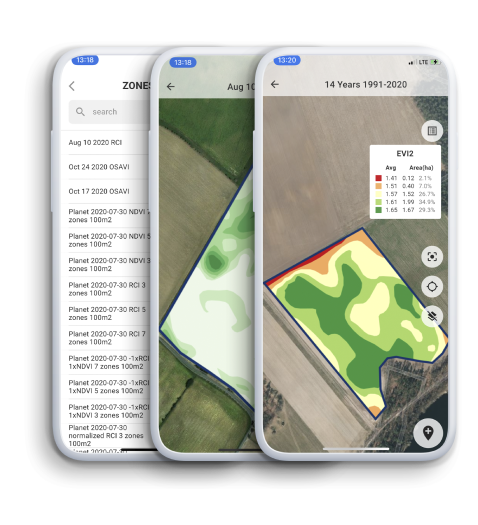
What is it about? You can visually compare field analytics side by side in a split view. It is possible to select any type of layers for comparison: imagery with natural or infrared colors, imagery with vegetation views, in-season or historical management zones. Two layers behave synchronously when you zoom-in / zoom-out or move a map for your conveniences.
How to enter the split view mode? Select your field and click compare layers icon in the top menu. On the split view screen, select the analytics layer using a searchable drop-down list located on the top.






 English
  German
  Ukrainian
  French
  Kazakh
  Portuguese
  Spanish
  Arabic
  Swedish
  Serbian
  Romanian
  Norwegian
  Finnish
  Lithuanian
  Estonian
  Latvian
  Croatian
  Slovenian
  Slovak
  Japanese
  Polish